
Training Help
Answers for officers and group leaders. Search below, or pick your role.
Tip: click or tap any screenshot to see it full size.
For officers
Your courses, progress and certificates live in one place called My Training. It is the same on a computer and in the DLG app.
My Training in 30 seconds
Sign in, then open My Training.
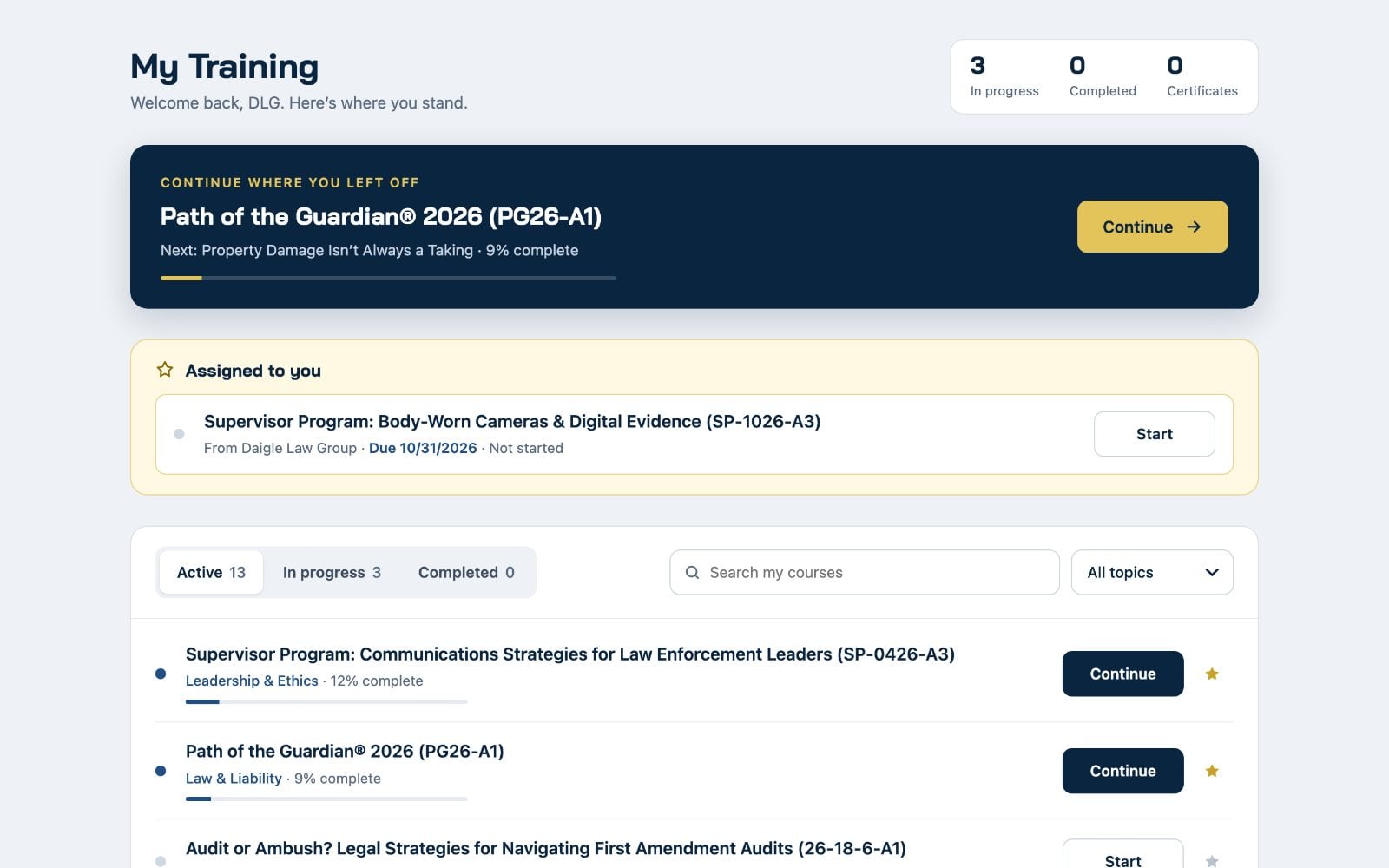
- Continue where you left off. The dark box at the top opens the next lesson you have not finished.
- Assigned to you. Training your agency asked you to take, with a due date if they set one.
- Your courses. Use the tabs, the search box or the topic menu to find any course. Tap the star to pin a course to the top.
The DLG app
Tap My Training at the bottom of the app. Your progress matches the website.
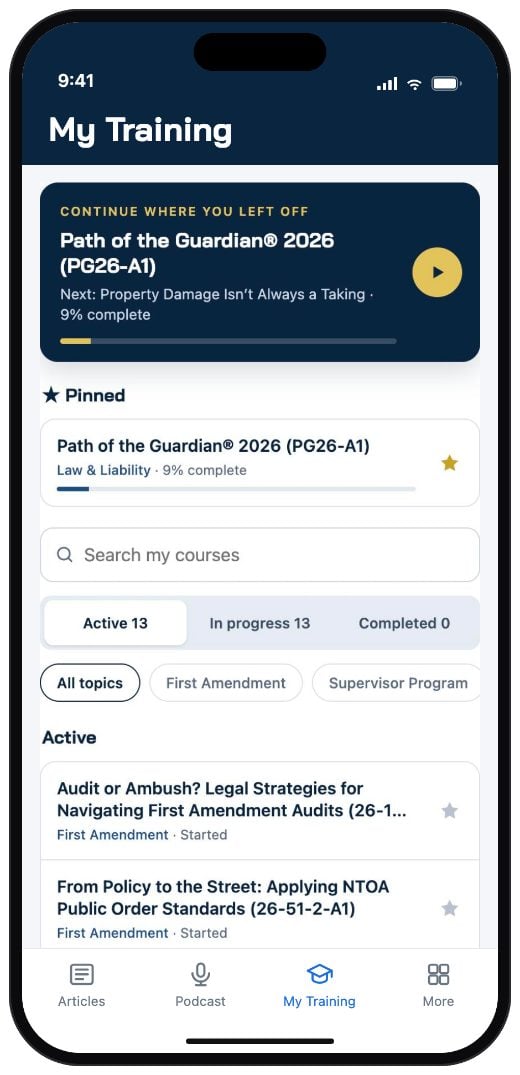
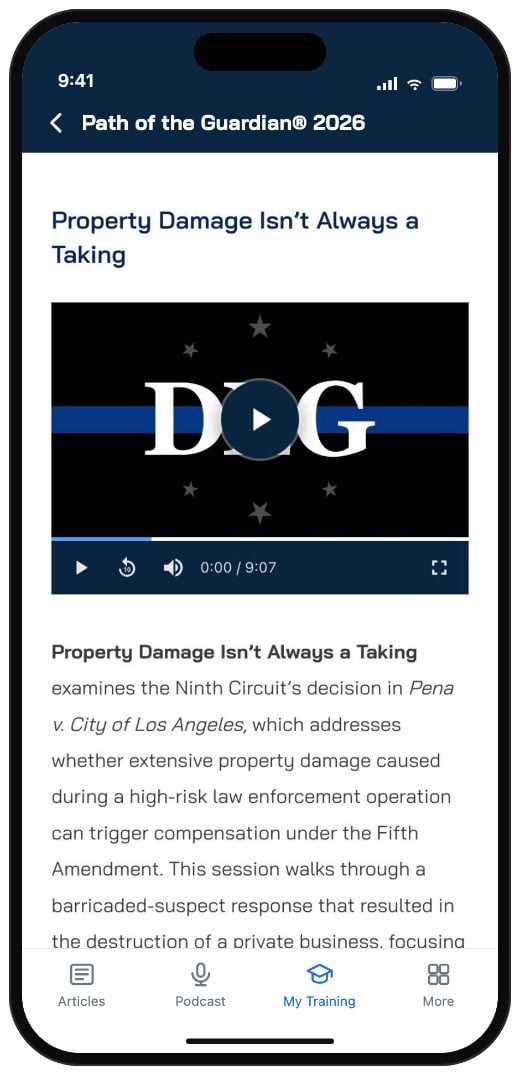
Where do I find my courses?
Sign in and open My Training. In the DLG app, tap My Training at the bottom of the screen.
Every course you have access to is listed there. Your agency decides which courses you can take.
Where did the Courses tab go in the app?
My Training replaced it. It shows the same courses, plus your progress, a Continue button and anything your agency assigned to you.
What do Active, In progress and Completed mean?
- Active lists every course you have not finished yet.
- In progress lists courses where you have opened at least one lesson.
- Completed lists courses you finished, with your certificate.
What does Assigned to you mean?
Your agency’s group leader asked you to take this course. It stays at the top of My Training until you finish it.
If there is a due date, it shows next to the course. Overdue courses move to the top and show in red.
How do I pin a course?
Tap the star next to any course. Pinned courses show first, on the website and in the app.
Courses your agency assigned are pinned for you and drop off once you finish them.
Where are my certificates?
On a computer, open My Training and choose the Completed tab. Each finished course has a Certificate button that opens a printable PDF.
You can also open a finished course and download the certificate from the course page.
How do I get my Connecticut POST credit form?
Finish the course first. On a computer, open My Training and choose the Completed tab. Courses that offer POST credit show a small POST credit form link. It opens the lesson with the form.
Fill it in and submit it. Your agency’s group leader can then download the signed form for your records.
Why can’t I skip ahead in a video?
Training videos must be watched once all the way through. You can pause, rewind 10 seconds and leave at any time.
After you finish the video, you can jump to any point in it.
Do I need to click Mark Complete?
No. A video lesson completes on its own when the video ends. If the lesson has a quiz or form, finish that too.
I left in the middle of a video. Do I have to start over?
No. The video picks up where you stopped, on the website or in the app.
Do the app and the website stay in sync?
Yes. Your progress and pinned courses are the same on both. Start on your phone and finish on a computer, or the other way around.
A video will not play or keeps loading.
- Try Wi-Fi. Videos can take longer to start on some cellular connections.
- If you see Try again, tap it.
- On a work computer, your IT department may be blocking video. Ask them to allow vimeo.com and dlglearningcenter.com.
Still stuck? Email us with the course name and the device you are using.
Why am I getting training reminder emails?
About every two weeks, we email you a short list of training waiting for you. It includes courses your agency assigned and courses you started but have not finished.
To stop them, click the link at the bottom of any reminder. Your training still shows in My Training.
Why did my group leader email me?
Group leaders can email their officers about a course, for example as a reminder to start or finish it. The email comes from DLG Learning Center, and replies go to your group leader.
What is the weekly Path of the Guardian email?
If you are taking Path of the Guardian, we email you when each new weekly lesson opens, with a link straight to it.
For group leaders
Manage your officers, assign training, track progress and download records from Manage Group. Use a computer, since the page needs a wide screen.
Your officers at a glance
The Officers tab lists everyone in your group, when they were last active and how many courses they finished.
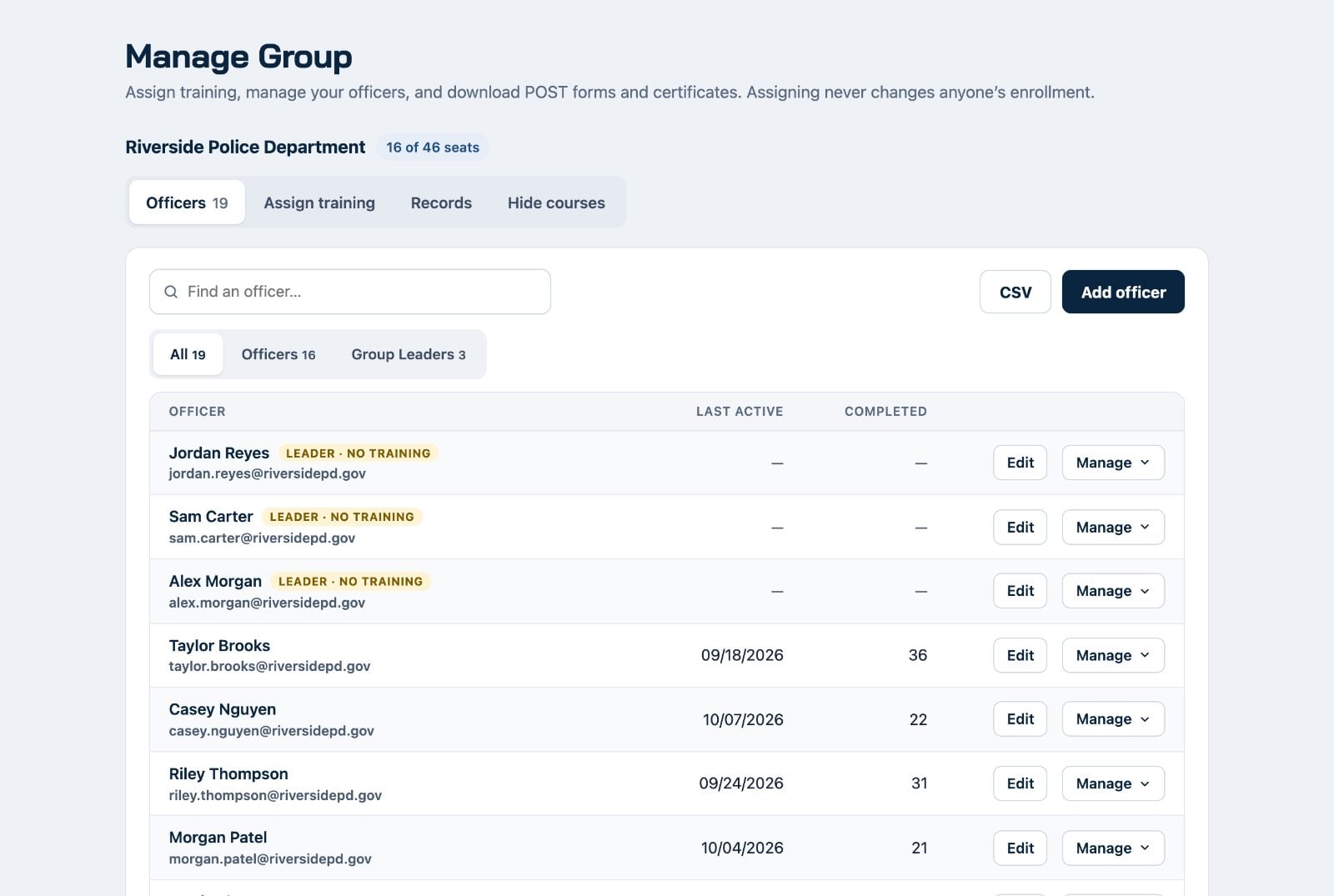
- Seats. The pill next to your group name shows seats used out of seats available.
- Filters. Switch between all people, officers only and group leaders only.
- CSV. Downloads your roster as a spreadsheet.
Add an officer
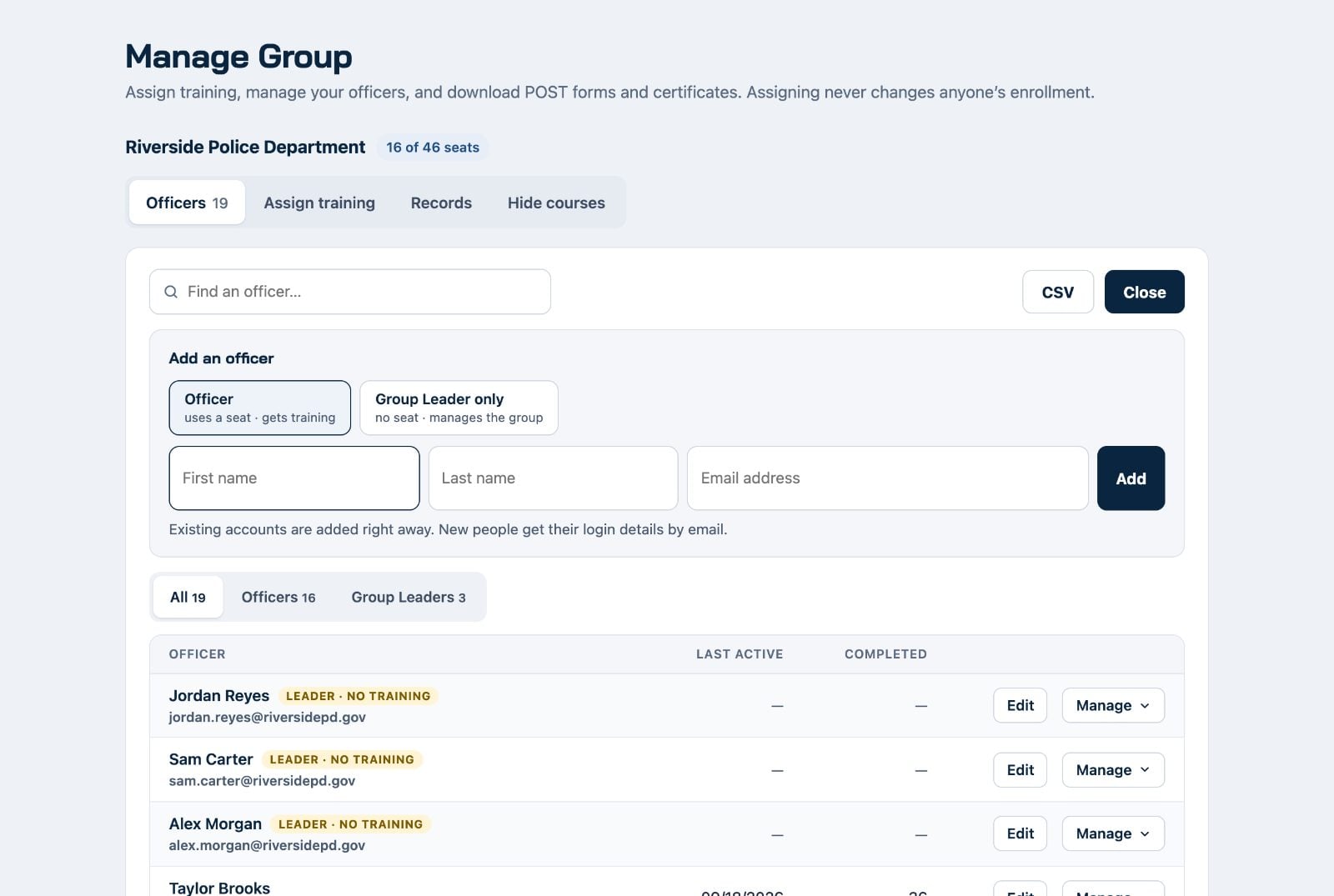
- On the Officers tab, click Add officer.
- Choose Officer if they will take training. Choose Group Leader only if they will only manage the group.
- Enter their first name, last name and email address, then click Add.
If they already have a DLG account, they are added right away. New people get an email from help@dlglearningcenter.com with their login details. An officer uses one seat. A group leader only does not use a seat.
Add several officers at once
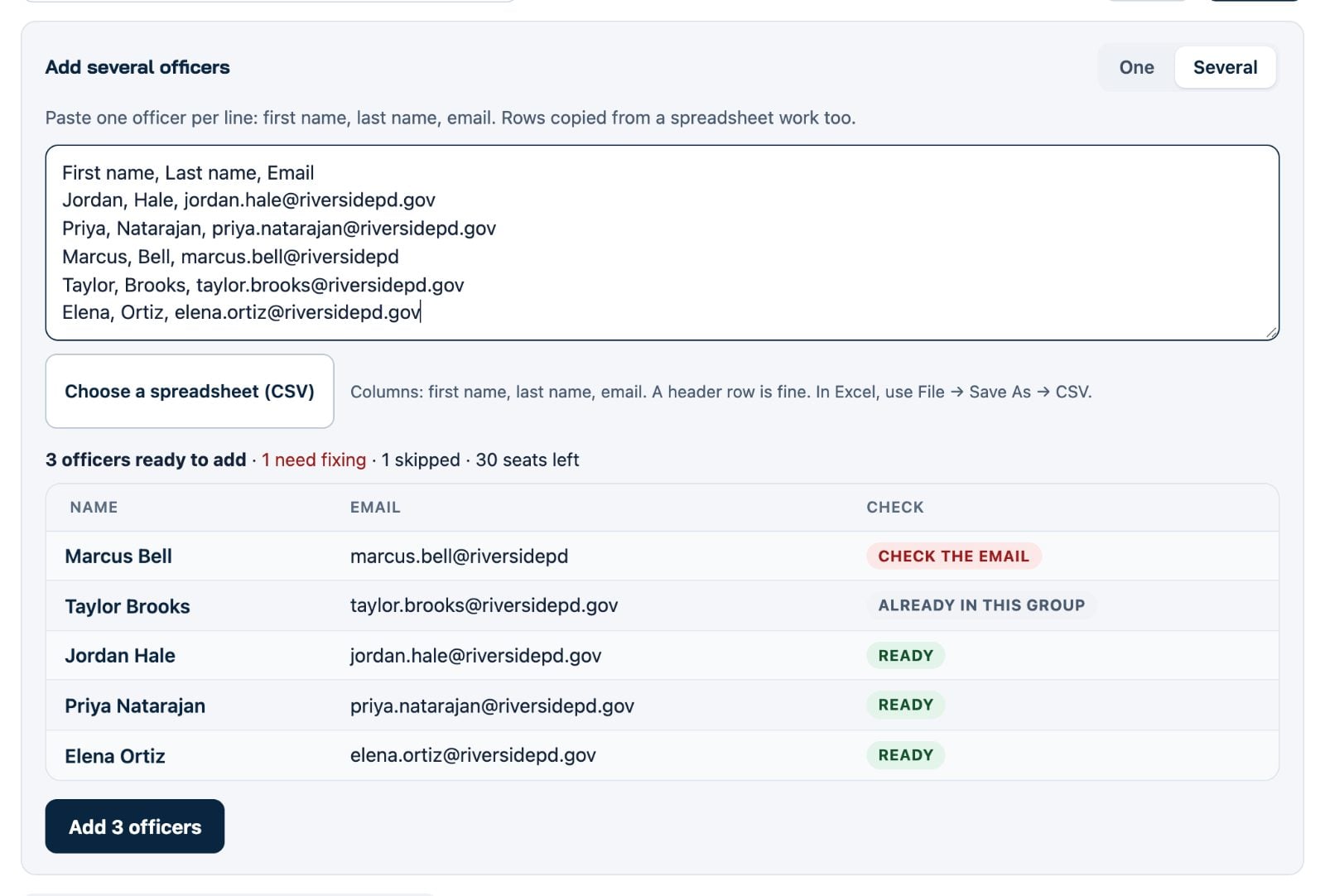
- On the Officers tab, click Add officer, then choose Several.
- Paste one officer per line: first name, last name, email. Rows copied from Excel work, or click Choose a spreadsheet (CSV).
- Check the list. Each row says Ready, or what needs fixing, such as a mistyped email or someone already in the group.
- Click Add with the number of officers. Keep the page open until it finishes.
Rows that need fixing are skipped, so nothing goes in half right. New people get their login details by email. Each officer uses one seat, and the page tells you if there are not enough seats left.
Assign training, with an optional due date
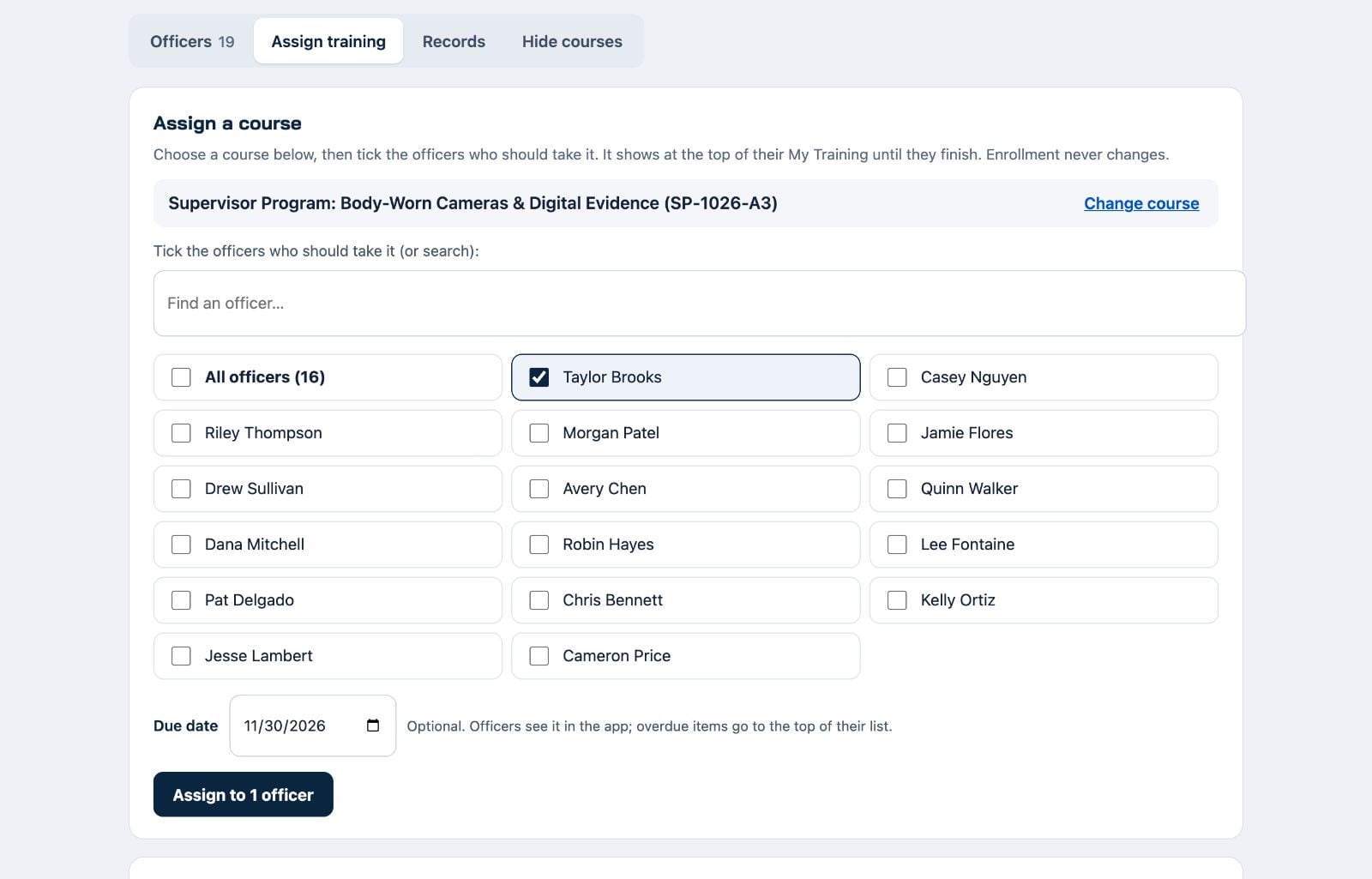
- Open the Assign training tab. Search by name or pick a topic, then click Assign next to a course.
- Tick the officers who should take it, or tick All officers.
- Add a due date if you want one. It is optional.
- Click Assign to the number of officers you picked.
The course appears at the top of each officer’s My Training until they finish. Everything you assign is listed below the picker under Assigned training.
Keep track of what you assigned
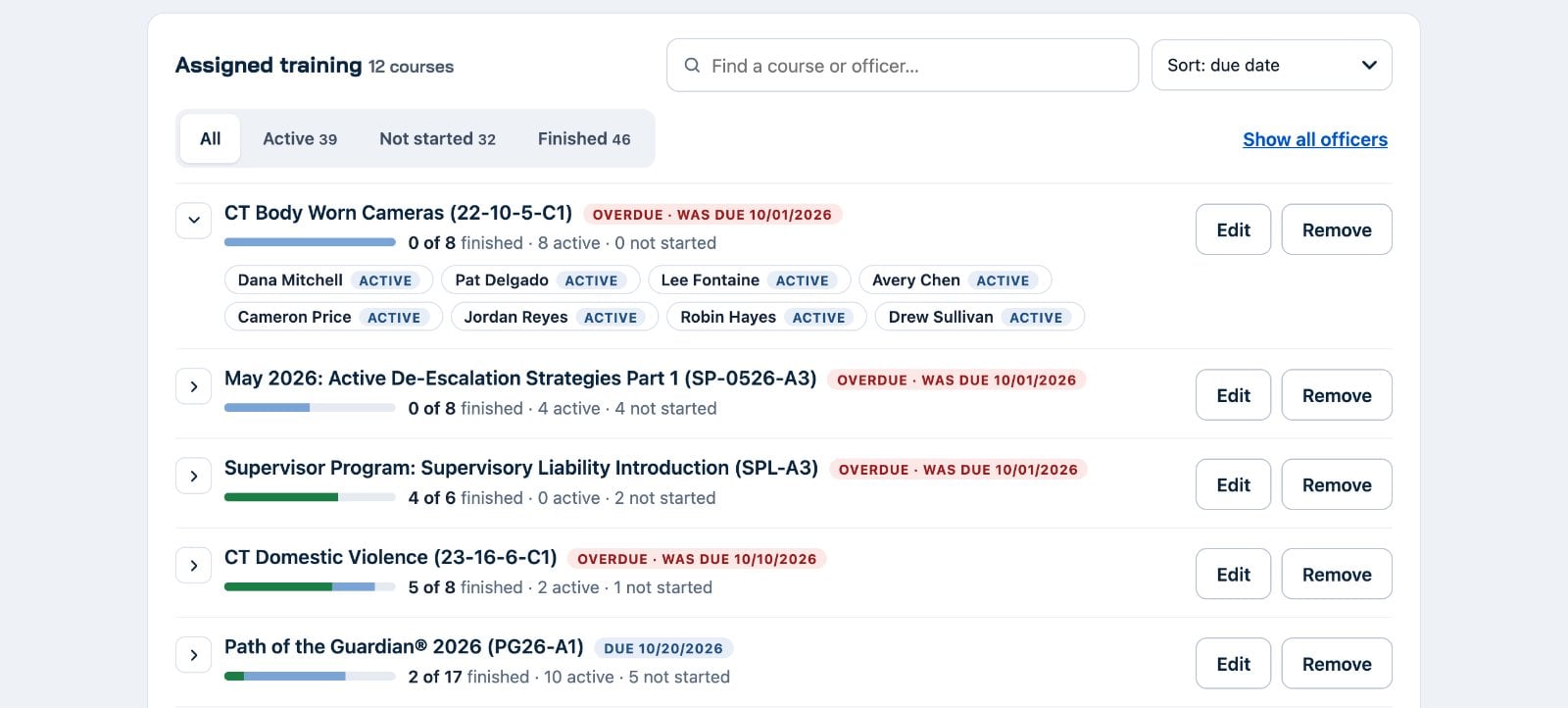
- Each course shows a progress bar and how many officers finished, for example 8 of 16 finished. Click the arrow or the course name to see each officer.
- Type a course or an officer’s name in the search box. Searching for an officer shows only their courses, already opened.
- Use the sort menu to put due date (overdue first), least finished, recently assigned or course name first. Click Active, Not started or Finished to see just those officers.
Show all officers opens every course at once. Use Edit to change who has a course or its due date, and Remove to take the assignment away from everyone.
See progress on any course
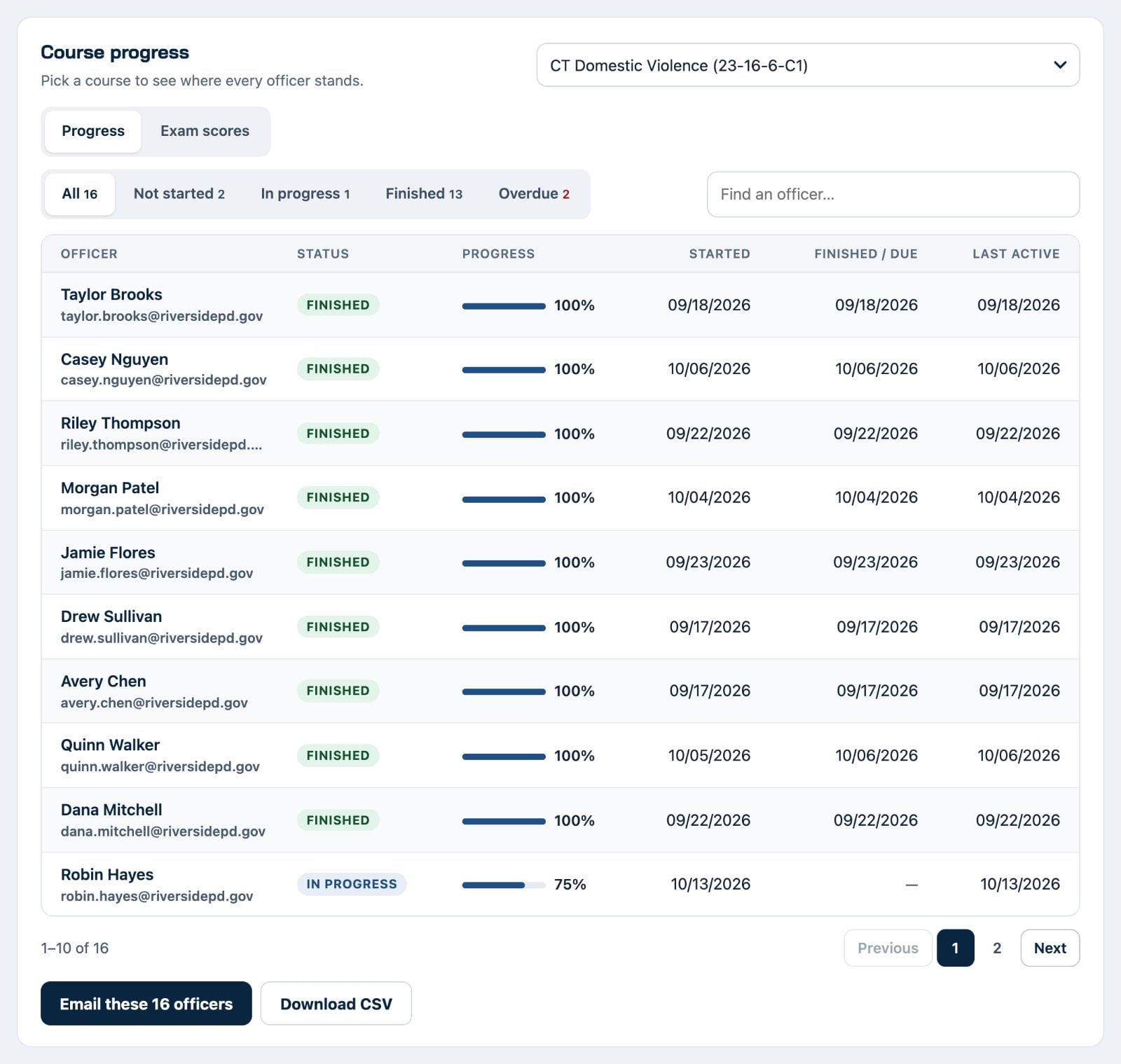
- Open the Progress tab and pick a course from the list.
- Use the buttons to show Not started, In progress, Finished or Overdue officers.
- Click Download CSV for a spreadsheet of the whole list.
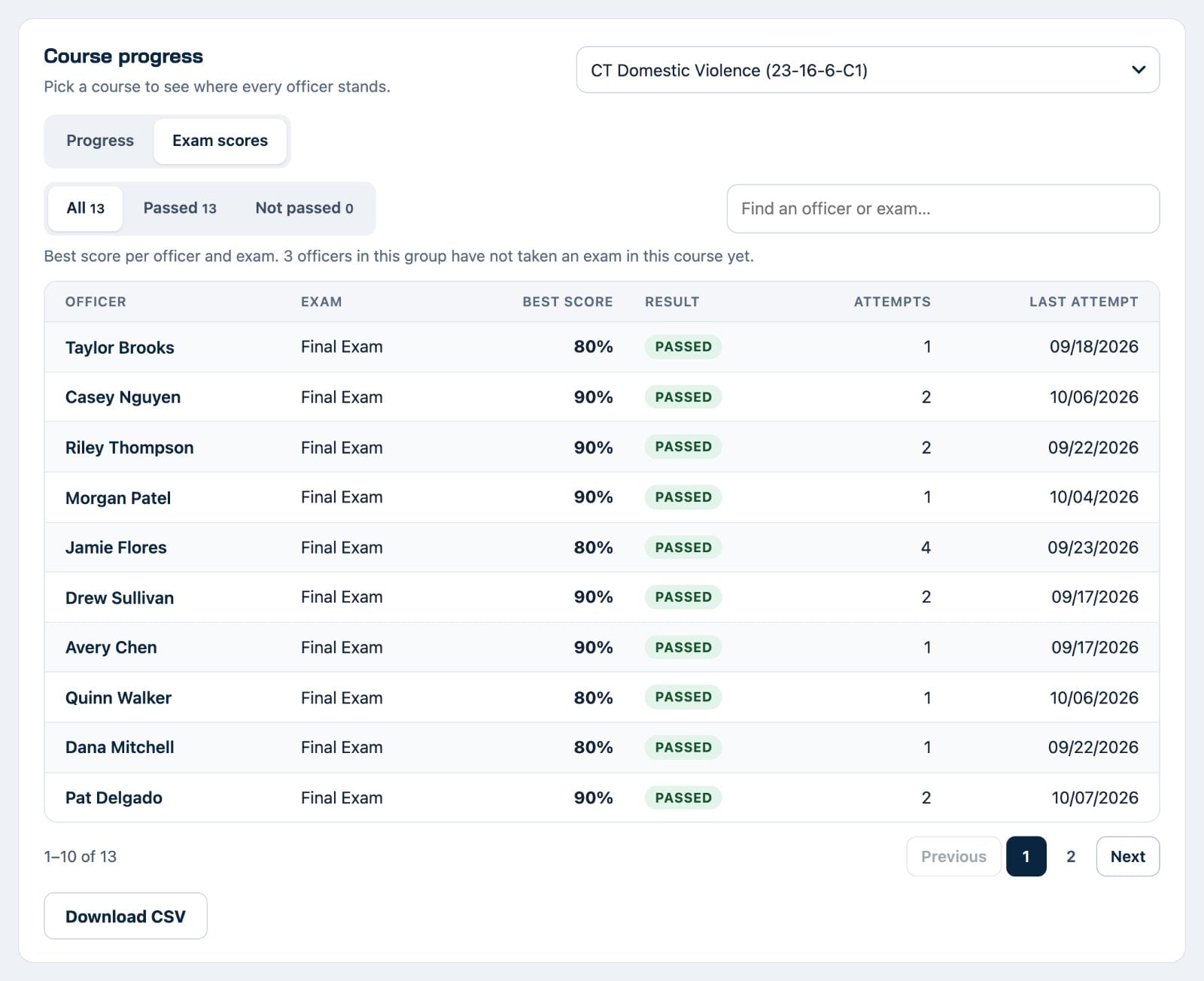
This works for every course your group has, not only courses you assigned. If the course has an exam, click Exam scores to see each officer’s best score, whether they passed and how many attempts they took.
Email officers who need a nudge
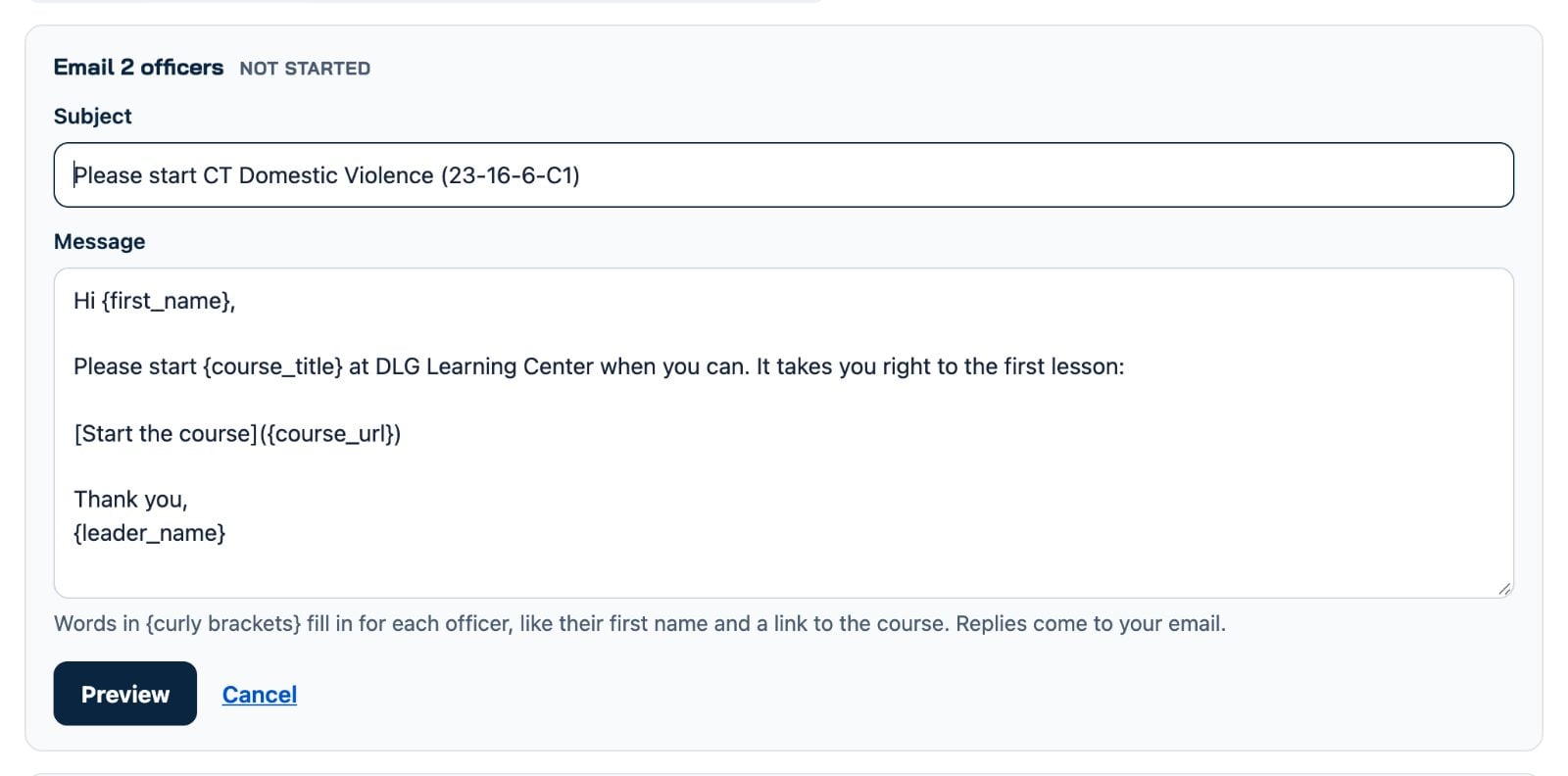
- On the Progress tab, pick the course and the group you want to reach, such as Not started.
- Click Email these officers. A ready-made message fills in, and you can change any of it.
- Click Preview to see exactly what an officer will get, then click Send.
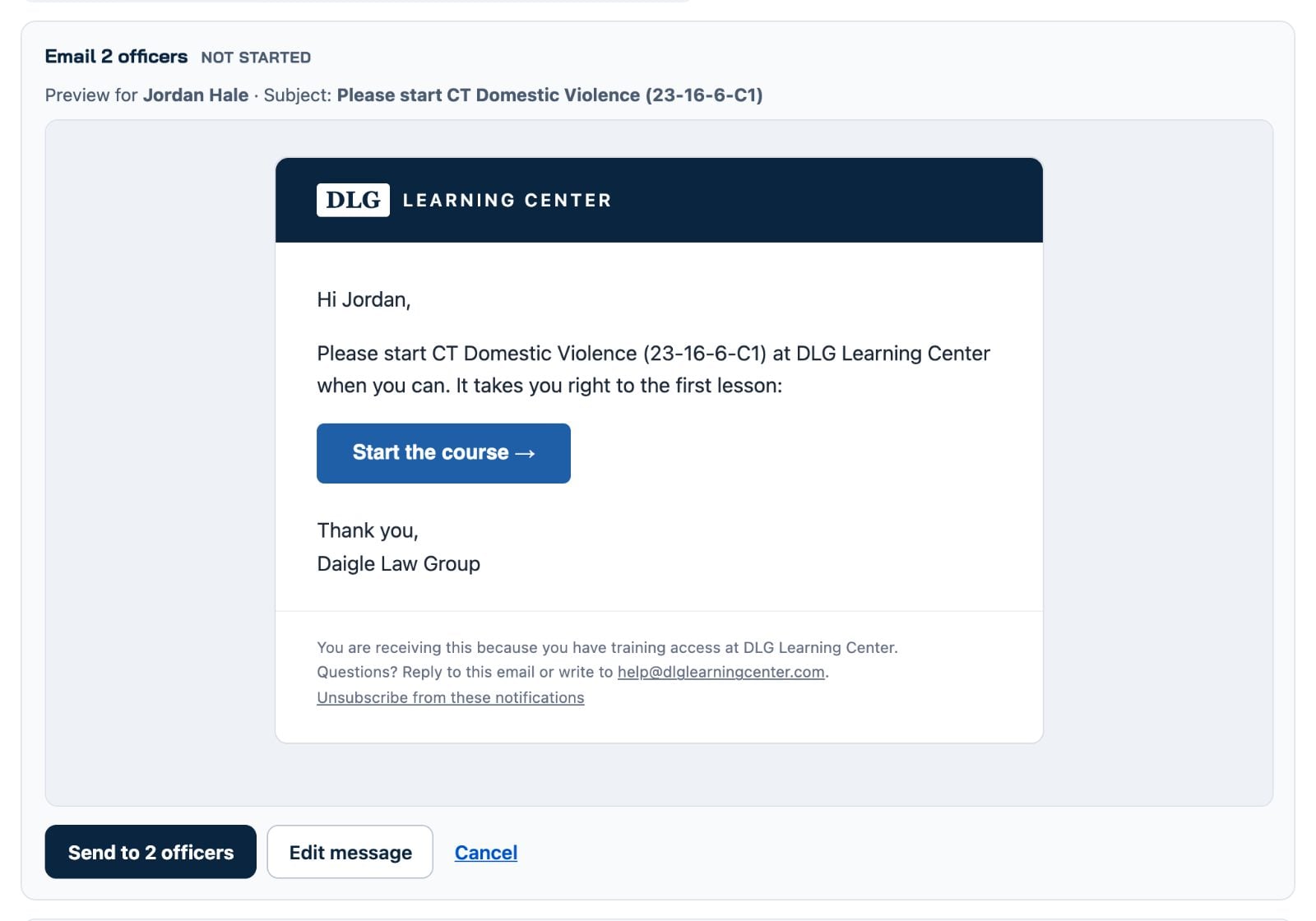
Each officer gets their own email with their name and a button to the course. Replies come to you. Emails go out on weekdays between 8 AM and 6 PM Eastern, and officers who unsubscribed are skipped automatically.
Download certificates and POST forms
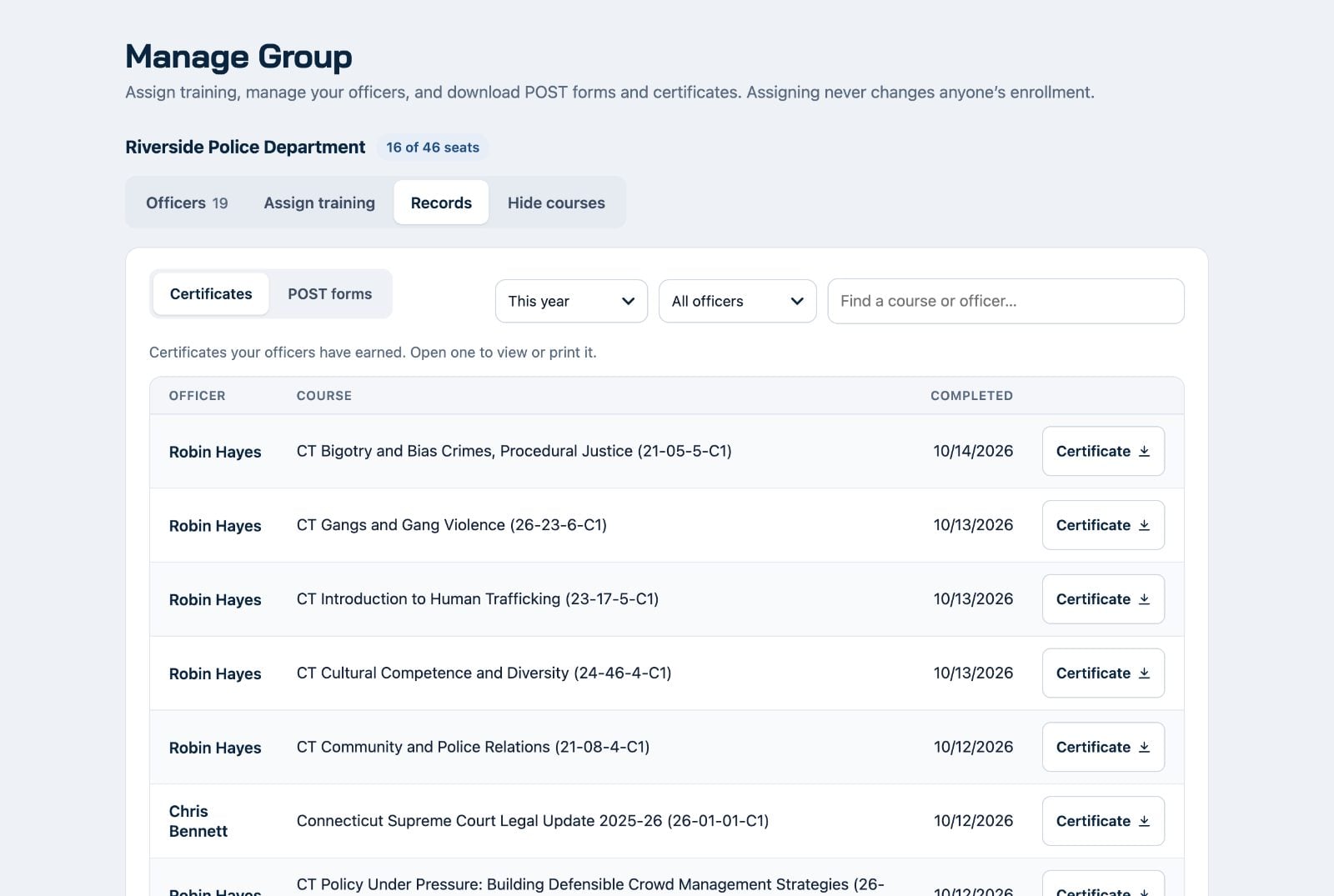
- Open the Records tab and choose Certificates or POST forms.
- Pick a date range and an officer, or search by course.
- Click the button on any row to download one record.
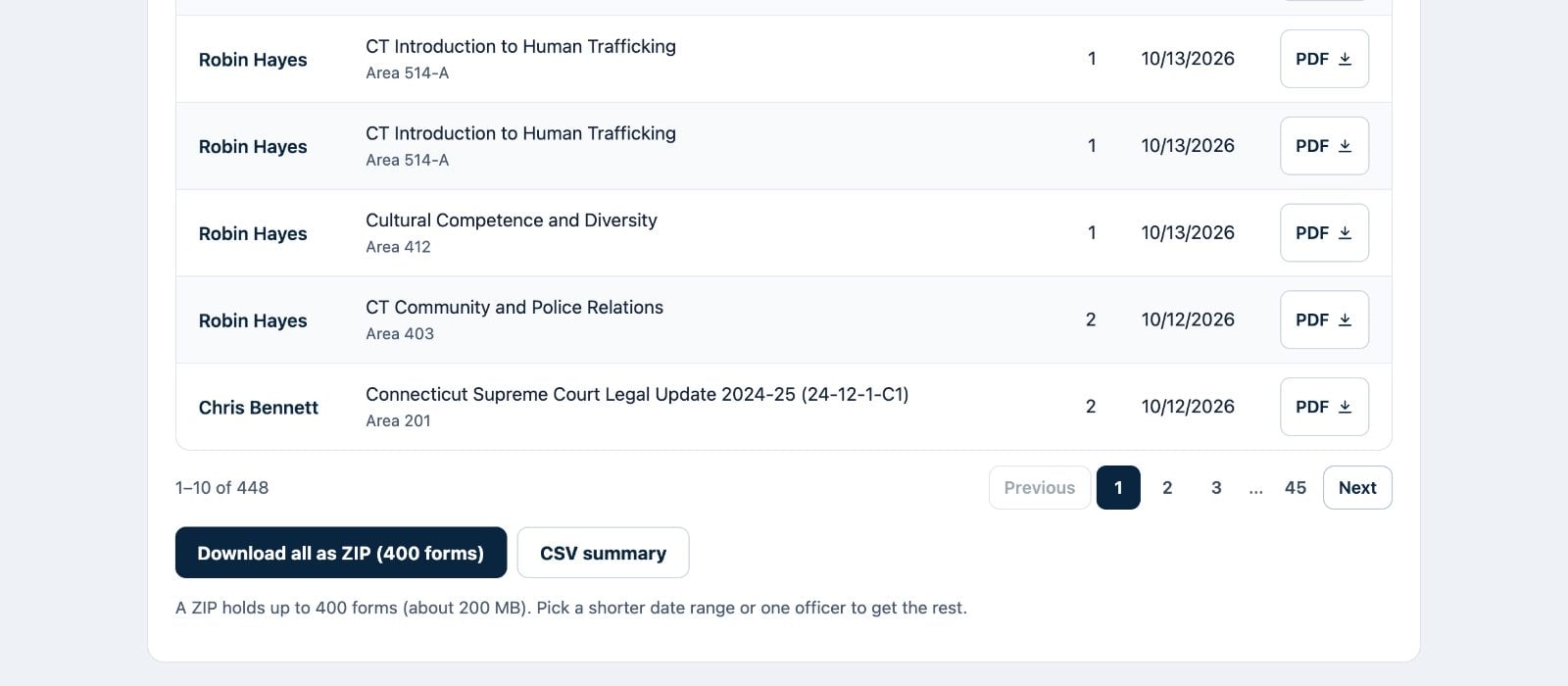
For POST forms, Download all as ZIP saves every form in your date range, sorted into a folder per officer. One ZIP holds up to 400 forms. CSV summary gives you a spreadsheet of the same list.
Who can use Manage Group?
Every group leader. Sign in and go to Manage Group. If the page says you are not a leader of any group, email help@dlglearningcenter.com and we will set you up.
Can I use Manage Group on my phone?
Not yet. The tables need a wider screen, so please use a computer or a tablet held sideways.
I lead more than one group.
Click Change group at the top right and pick the group you want.
What does the seats number mean?
It shows how many seats your group has used out of the total. Each officer who takes training uses one seat. Group leaders who only manage the group do not use a seat.
All my seats are used. How do I add someone?
Remove someone who has left, which frees their seat, or contact DLG to add seats.
How do I remove an officer?
On the Officers tab, click Manage on their row, then Remove from group, and confirm.
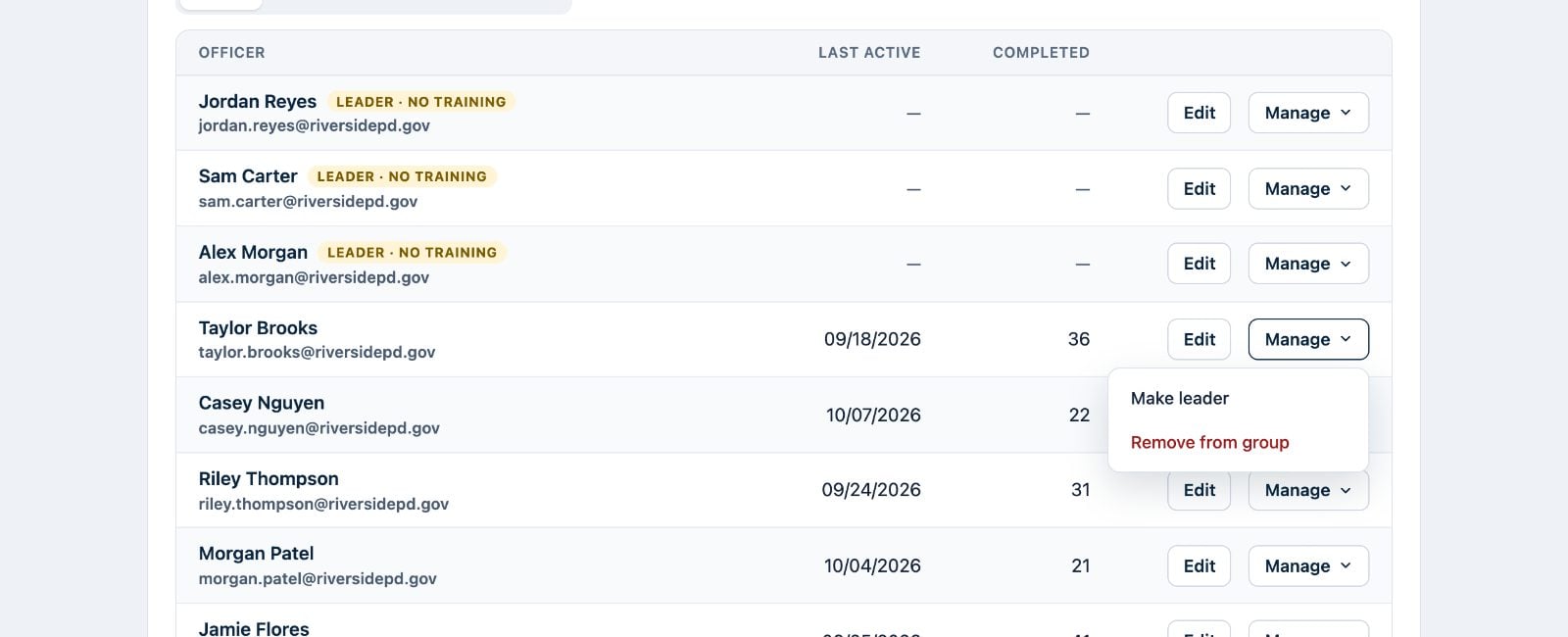
This frees their seat and ends their access to your group’s courses. Their own account and training history are not deleted.
How do I make someone a group leader?
Click Manage on their row, then Make leader. To remove another leader, contact DLG.
What does Leader · no training mean?
That person manages your group but is not taking training in it, so they do not use a seat. To give them training, click Manage, then Give training. That uses one seat.
An officer can’t sign in or never got their invitation.
On the Officers tab, click Manage on their row, then Send password reset. For someone who has never signed in, it says Resend invitation.
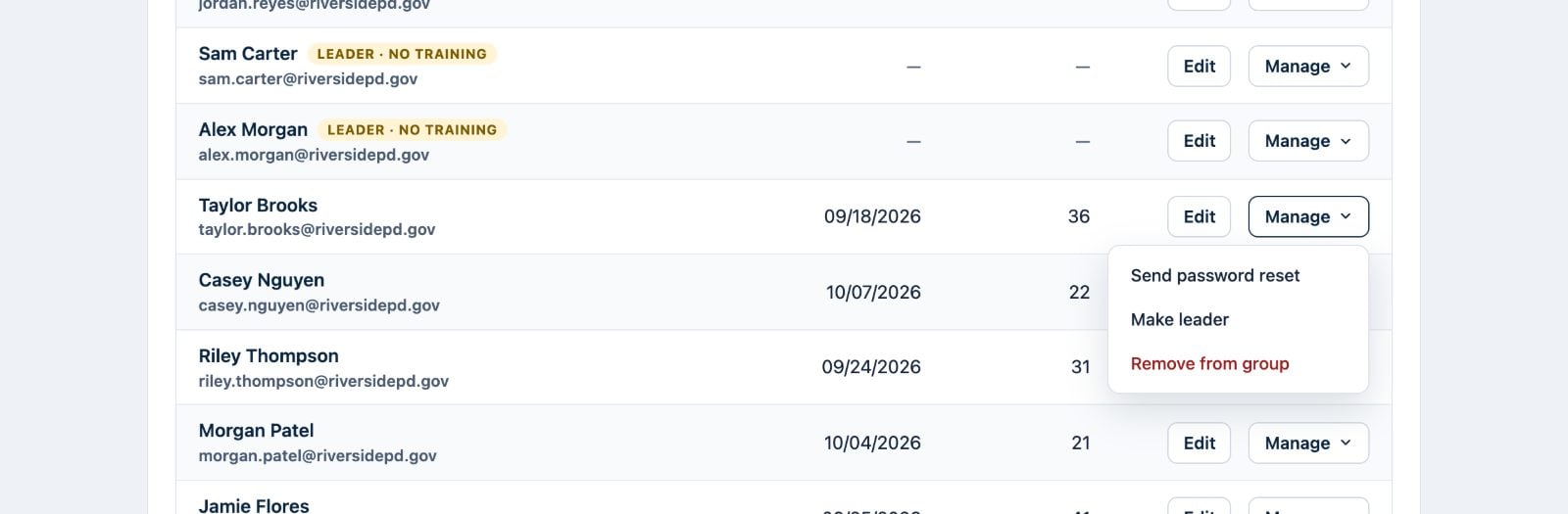
They get an email with a link to set a password. If it doesn’t arrive, ask them to check spam, or have their IT department allow email from dlglearningcenter.com.
Can I upload a spreadsheet of officers?
Yes. On the Officers tab, click Add officer, choose Several, then Choose a spreadsheet (CSV). In Excel, save the sheet with File, then Save As, then CSV. The columns are first name, last name and email.
How do I fix an officer’s name or email?
Click Edit on their row, make the change and save it.
Does assigning a course enroll my officers?
No. You can assign any course your group already has. Assigning puts it at the top of the officer’s My Training. It never adds or removes access.
Do officers get reminded about assigned training?
Yes. Assigned and overdue courses show at the top of their My Training. They are also included in the reminder emails we send about every two weeks.
Can I see who finished an assigned course?
Yes. On the Assign training tab, each course under Assigned training shows how many officers finished. Click the course to see each officer’s status. The Progress tab shows every officer’s status for any course, assigned or not.
How do I see everything assigned to one officer?
On the Assign training tab, type the officer’s name in the search box under Assigned training. Only that officer’s courses stay on the list, already opened, with their status for each one.
How do I see exam scores?
Open the Progress tab, pick the course, then click Exam scores. You see each officer’s best score, whether they passed and how many attempts they took. Download CSV gives you the same list as a spreadsheet. The button only appears for courses that have an exam.
When do group emails go out, and who gets them?
- Only the officers in the list you picked, and only while they are still in your group.
- Emails go out on weekdays between 8 AM and 6 PM Eastern. A message sent at night goes out the next morning.
- Officers who unsubscribed, or whose email bounced, are skipped automatically.
- Replies come to your email address.
- You can send up to 5 group emails a day.
Can I mark an officer’s course complete or change a score?
No. Group leaders can see progress and scores but cannot change them. That keeps every completion and certificate trustworthy. If a record looks wrong, email help@dlglearningcenter.com and DLG staff will review it.
What is Hide courses?
For groups on an Unlimited plan, you can hide courses your officers do not need, so My Training stays focused. Hiding never removes access. Contact DLG to turn it on.
Where are the old group management pages?
They are still available at Group Management while everyone moves to Manage Group. Both show the same group and officers.
Account and support
Signing in, passwords and email.
How do I sign in?
Click Log In in the menu. Enter your username or email address and your password.
I forgot my password.
Click Log In, then Lost your password? Enter your email address and we will send you a reset link.
My password is right but I still cannot sign in.
Update your browser, or try another one such as Chrome, Edge, Safari or Firefox. If it still fails, email us.
I am not getting emails from DLG.
Check your spam or junk folder first. Department email filters often block outside mail, so ask your IT department to allow email from help@dlglearningcenter.com and daiglelawgroup.com.
My name is spelled wrong.
Email us the correct spelling and we will fix it. Your certificates use the name on your account.
Still need help?
Email help@dlglearningcenter.com or call 860-270-0060. We usually reply within one business day.